Just migrated your website, but your own browser or computer keeps loading the old one?
I fought this for eighteen hours after launching laksha.net. Every other browser showed the new site. My main Chrome would not. The fix that actually worked took about twenty seconds.
If I had to do it again today, here is exactly what I would do, in order.
Step #1: Prove it is local, not the server
- Open the site in an incognito window
- Open it in a second browser (Safari, Firefox, anything)
- If those show the new site, the server and DNS are fine, and the problem is cached on your own machine. If even incognito shows the old site, it is more likely DNS, so start with Step 2.
Step #2: Flush your local DNS cache
Your computer caches DNS, so after you change where the domain points, it can keep talking to the old server.
- Windows: open Command Prompt and run
ipconfig /flushdns - Mac: open Terminal and run
sudo dscacheutil -flushcache; sudo killall -HUP mDNSResponder - Not comfortable in a terminal? Just restart your computer. A reboot flushes the DNS cache for you.
Step #3: Clear the site's cached data
- Go to
chrome://settings/content/all - Search your domain and delete its data
- Reopen the site. If it is fixed, great. If not, do not panic, this one did not work for me either.
Step #4: Force a clean fetch with DevTools
This is the step that actually fixed it for me.
- Open the page, press F12, and go to the Network tab
- Check "Disable cache"
- With DevTools still open, retype the URL and press Enter
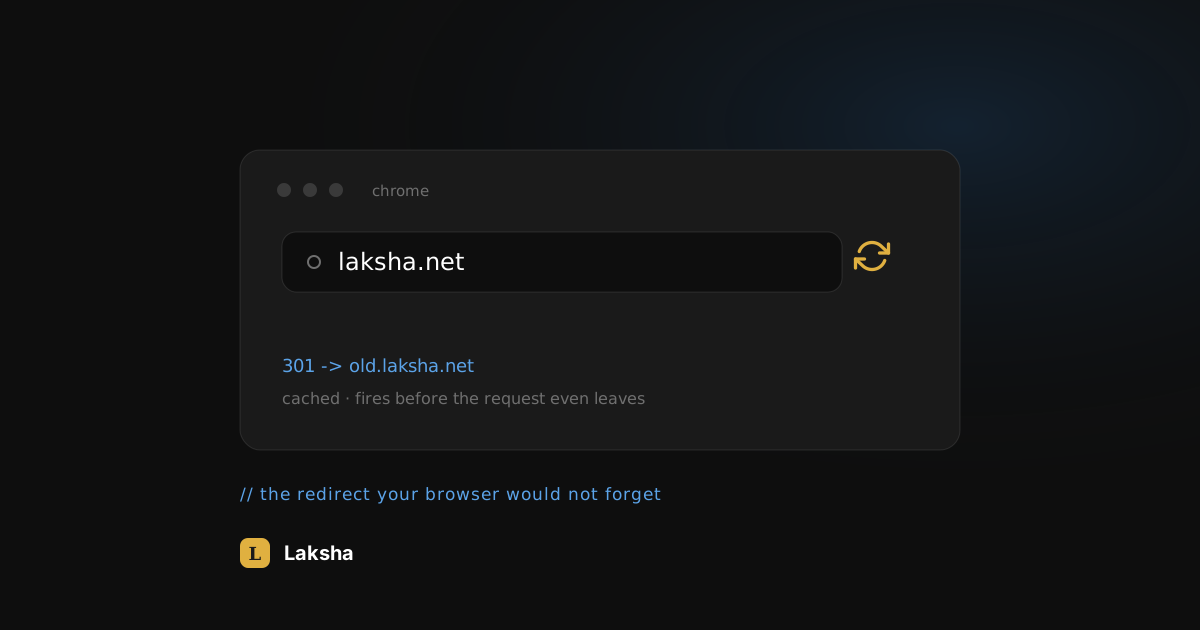
With caching off, the browser ignores the stored redirect, loads the new site fresh, and overwrites the bad cache. Close DevTools and it stays fixed.
Step #5: Prevent it next time by lowering your DNS TTL before go-live
This one is prevention, and I do it for every high-visibility production launch.
A few days before you point the domain at the new host, log in to your DNS provider and lower the TTL (time to live) on the records you are changing, down to about 300 seconds. TTL tells the internet how long it is allowed to cache your DNS, so a low TTL means the world picks up your new server in minutes instead of hours. Raise it back once the migration is stable.
It targets the DNS side, not the browser redirect that got me, but it is the single best thing you can do to shrink the window where anyone sees the old site.
Still stuck? Keep going
If the new site still will not load in your main browser, keep escalating.
Step #6: Kill the old service worker
The old site may have registered one that quietly intercepts requests. Press F12, go to the Application tab, find Service Workers, and click Unregister. You can also open chrome://serviceworker-internals/, find your domain, and unregister it there.
Step #7: The nuclear option
Go to chrome://settings/clearBrowserData, set the time range to All time, check "Cached images and files" and "Cookies and other site data", and clear. This wipes more than you need, but it always works.
That is the whole playbook. Run these in order and you will save yourself the eighteen hours I wasted blaming DNS, the host, and everything except the browser sitting right in front of me.
Frequently Asked Questions
Why does my old website still load after I migrated to a new one?
Usually because something on your machine cached the move. Either your browser stored an old permanent redirect (an HTTP 301) from the old setup, or your computer cached the old DNS record. Both keep pointing you at the old server even though the new one is live.
Why does the new site work in incognito but not in my normal browser?
Incognito does not use your normal browser's cache or service workers, so it talks to the live server directly. If incognito shows the new site and your normal window does not, the problem is a cached redirect or a service worker in your main profile, not the server.
Does a hard refresh fix this?
Often not. A hard refresh reloads the page assets, but it does not clear a cached 301 redirect or a registered service worker. That is why people stay stuck. Use the DevTools "Disable cache" step, or clear the site data, instead.
How do I flush the DNS cache on Mac and Windows?
On Windows, run ipconfig /flushdns in Command Prompt. On Mac, run sudo dscacheutil -flushcache; sudo killall -HUP mDNSResponder in Terminal. If you would rather not touch a terminal, restarting your computer flushes the DNS cache too.
What is DNS TTL and why should I lower it before a migration?
TTL (time to live) is how long the internet is allowed to cache your DNS records. If it is set high, resolvers keep using your old server's address for hours after you cut over. Lowering it to around 300 seconds a few days before go-live means the switch propagates in minutes. Raise it back afterward.
How long should a site migration take to fully propagate?
With a low TTL set in advance, most people see the new site within minutes. Stragglers can take up to the old TTL value, which is why high TTLs cause day-long tails. Local browser caches, like the cached redirect in this post, can persist even longer until you clear them.